How to Use Storydio
Bring any story to life in your voice — your own book, a story from our library, or a brand-new adventure created just for you.
Turn any children's story into an audiobook narrated in your voice. Bring your own PDF, explore our library, or create a personalized story with AI. Add music and sound effects to make every story feel special.
Quick Start

1. Choose Your Story
Upload a PDF, pick a library book, or create a custom AI story.
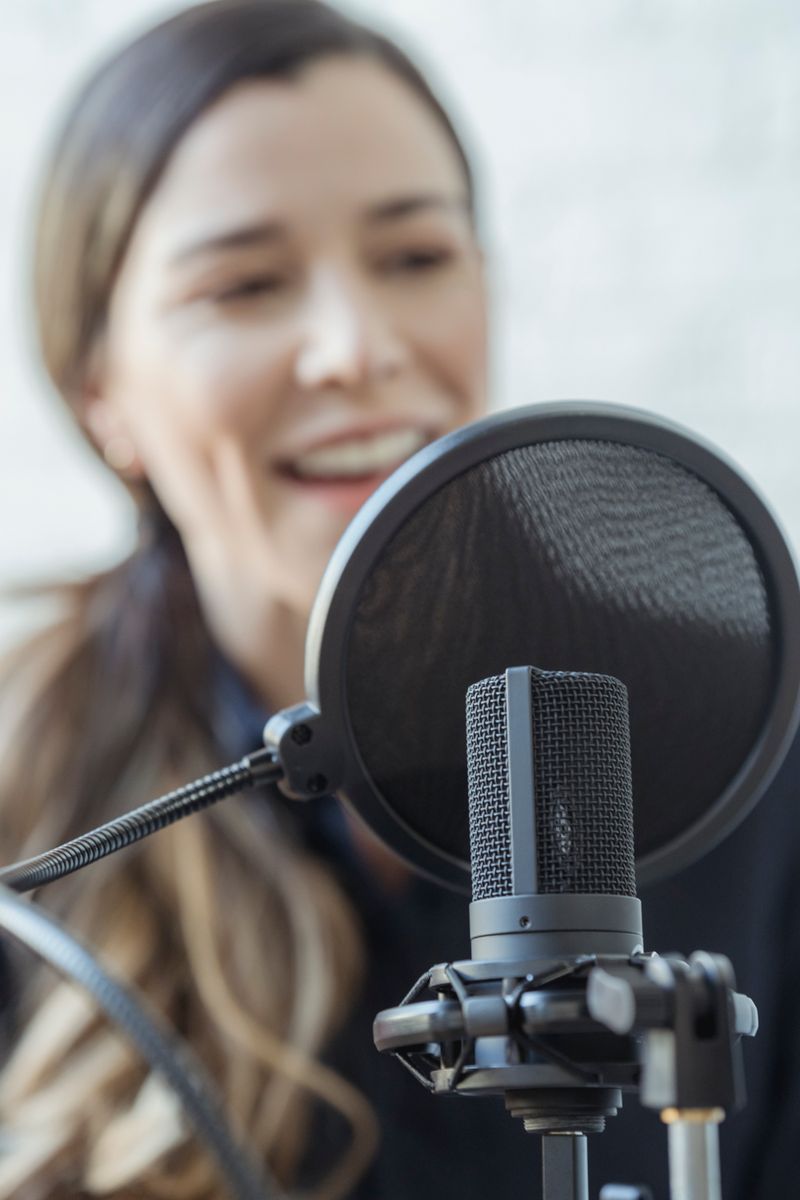
2. Choose Your Voice
Pick a built-in family voice or record your own.
3. Create Your Audiobook
Our AI generates the complete audiobook in your voice.

4. Enjoy Together
Hit play and hear the story in your voice anytime.
That's it! Your audiobook appears in My Audiobooks after you review it.
📚 1. Choose Your Story
Start by choosing the story you want to listen to.
📚 Choose from the Storydio Library
Browse the Storydio Library and choose one of the available stories.
Library books are already prepared for Storydio, so you can quickly move on to choosing your narrator. Some books may also have pre-generated audiobooks available, allowing you to start listening almost immediately at a reduced token cost.
✨ Create a Custom Story
Don't have a book? Let Storydio write one for you. Describe what you want — the child's name, an age range, a subject or lesson, a mood, a setting, and an ending — and our AI writes an original illustrated-style story in seconds. You can revise your story up to 9 times before approving it.
Cost: writing a custom story costs 50% of the story's character count in tokens, charged once when the story is first generated. You can revise the story up to 9 more times at no extra cost.
When you later create an audiobook from the approved story, you're charged the normal audiobook rate (based on the narrated character count) — the same as any PDF or library audiobook.
Custom stories are approved once, then can be used to create audiobooks at any time.
📄 Upload Your Own Book
You can also upload your own PDF story.
- Select Upload PDF and choose the PDF from your device.
- Storydio will extract the story text and prepare it for narration.
🎙️ 2. Choose Your Voice
Storydio lets you choose who tells your story.
🎙️ Built-in Voices
Choose from the Storydio family of voices.
- You can listen to a sample of a voice without selecting it by clicking Sample.
- When you find a voice you like, simply click the voice card to select it.
👤 Your Recorded Voices
You can create and use your own voice.
Your recorded voices appear under My Recorded Voices.
- Select a voice by clicking its card.
- Listen to its sample by clicking Sample.
- Delete a voice using the delete button.
Your custom voice is used to generate the narration specifically for your audiobook.
🔊 3. Customize Your Audiobook
Choose whether you want your audiobook with or without sound effects.
🔊 With Sound Effects
Storydio can add sound effects that match the events and moments in your story, making the listening experience more immersive and engaging.
🎵 This option also includes background music that complements the story.
🔇 Without Sound Effects
Prefer a simpler listening experience? Choose Without Sound Effects for narration without added sound effects or background music.
🎧 4. Create Your Audiobook
Once you have selected:
- your story
- your narrator
- sound-effect options
click Generate Audiobook. Storydio will prepare your audiobook.
What happens next?
For a newly generated audiobook, Storydio processes the story and creates the narration and audio elements.
You can monitor the progress from the application.
Depending on the length of the story and the options you selected, generation may take some time.
⚡ Instant Audiobooks
Some Storydio library books are available as pre-generated audiobooks.
When you select a library book with a built-in voice and a matching pre-generated audiobook is available, Storydio uses the existing audiobook instead of generating it again.
- ⚡ Available almost immediately
- 💰 Costs only 25% of the normal token cost
- 🎧 Uses the pre-generated audiobook
You don't need to wait for a new generation.
What if the pre-generated version isn't available?
No problem! Storydio will process the audiobook normally.
📚 5. Review & My Audiobooks
Once your audiobook has been generated, you can review it before adding it to your collection.
⏳ Pending Review
After generation completes, your audiobook goes to Pending Review.
From here you can:
- 🎧 Listen — Play the audiobook and review each narration section
- 🔧 Mark sections for repair — Select any part of the narration that needs improvement
- 🔄 Regenerate — Generate new versions of the marked sections
- ✅ Approve — When you're happy with the audiobook, click Approve
You can regenerate sections up to 3 times.
📌 If you've used all 3 regeneration rounds and still need help, contact Storydio Support.
⏰ Automatic approval: If you don't review your audiobook, it will be automatically approved after 24 hours.
✅ Approved Audiobooks
Once you approve an audiobook, it moves to My Audiobooks.
From there you can:
- ▶️ Listen — Play your audiobook directly from Storydio
- 📥 Download — Download your completed audiobook for listening anytime
- 🗑️ Delete — Remove an audiobook from your collection when you no longer need it
💰 6. Tokens & Pricing
Storydio uses tokens to create audiobooks. The number of tokens used depends on the length of the story and the audio options you choose.
🎁 Start with 10,000 Free Tokens
New users receive 10,000 free tokens to try Storydio and create their first audiobooks.
📝 How tokens are used
- PDF or library audiobook: charged once, when the audiobook is generated. Cost is based on the narrated character count.
- Library audiobook with a pre-generated version: charged at 25% of the normal rate.
- Custom AI story: charged 50% of the story's character count when the story is first generated. Revisions are free.
- Audiobook created from an approved custom story: charged the normal audiobook rate, based on the narrated character count — the same as any other audiobook.
💳 Token Pricing
When you need more tokens, you can purchase them through our available token plans.
View Pricing💡 8. Tips for Better Results
✨ Try a custom story
Not sure what to read? Let Storydio write an original story tailored to your child's age and interests.
👀 Review before you approve
Have you listened to the full audiobook? Once approved, it moves to My Audiobooks and can no longer be regenerated or repaired.
📄 Use a good-quality PDF
PDFs with clean, selectable text generally produce better narration.
🎙️ Choose the right voice
Listen to voice samples before making your selection.
🔊 Try sound effects
Sound effects can make children's stories more immersive and engaging.
📚 Try the Storydio Library
Library books with pre-generated audiobooks can be available much faster and cost only 25% of the normal token cost.
❓ Frequently Asked Questions
Can I use my own PDF?
Yes. Upload a PDF and Storydio will prepare it for audiobook generation.
Can I use my own voice?
Yes. You can add and select a recorded voice from My Recorded Voices.
Can I hear a voice before selecting it?
Yes. Click Sample on a voice card to hear the sample. Listening to a sample does not select the voice.
Do library books always use pre-generated audiobooks?
No. A pre-generated audiobook must exist for the selected book, built-in voice, and applicable audio options. If one isn't available, Storydio generates the audiobook normally.
Why does a library audiobook cost only 25%?
Because the audiobook has already been generated. You are accessing an existing pre-generated audiobook rather than consuming the resources required to generate it again.
Can I delete a pre-generated audiobook?
Yes. You can remove it from your own audiobook collection. The shared Storydio audiobook remains available to other users.
Can I use a custom voice with a library book?
Yes. However, a custom voice requires generating the narration specifically for you, so the pre-generated audiobook pricing does not apply.
How long does audiobook generation take?
Audiobook generation usually takes a few minutes, but longer stories or more advanced audio options may take longer. You can monitor the progress while your audiobook is being created.
How much does a custom story cost?
Writing a custom story costs 50% of the story's character count in tokens. For example, a 2,000-character story costs about 1,000 tokens. This is charged once, when the story is first generated. Revising the story (up to 9 regenerations) is free. When you later create an audiobook from that story, you pay the normal audiobook rate — the same as any PDF or library audiobook, based on the narrated character count.
Why do I pay twice — once for the story, then again for the audiobook?
The two charges pay for different work. The story fee covers the AI that writes the story text. The audiobook charge covers the narration — the AI voice model that reads the story aloud, plus sound effects and music. Because the story and the narration are separate generation steps, they're billed separately. Combined, the full path from "idea" to "finished audiobook" costs about 150% of the story's character count.
What if I don't like the story and want to start over?
You can either delete the session (the story fee is not refunded) and start a new one, or use the Try Different Ideas button inside the existing session to regenerate a new version. Regenerating is free, up to 9 times. This is almost always cheaper than deleting and starting over.
💡 Ready to Create Your First Audiobook?
Choose a story → Choose a voice → Add sound → Create your audiobook
Get Started